Screenplay & breakdown
Paste a script or import Fountain or plain text. Review the proposed cast, locations and shots before applying the breakdown.

For the worlds only you can imagine.
Your script, your cast, your final cut.
One AI film studio to bring it all to life.
The story is already yours. Turn it into a cast, a world and a plan you can work with. Then take it scene by scene, all the way to the final cut.

Start with the story you already have. Paste your screenplay or upload a file, then analyze it to create a proposed cast, world references and shot plan. Review the breakdown before you apply it.
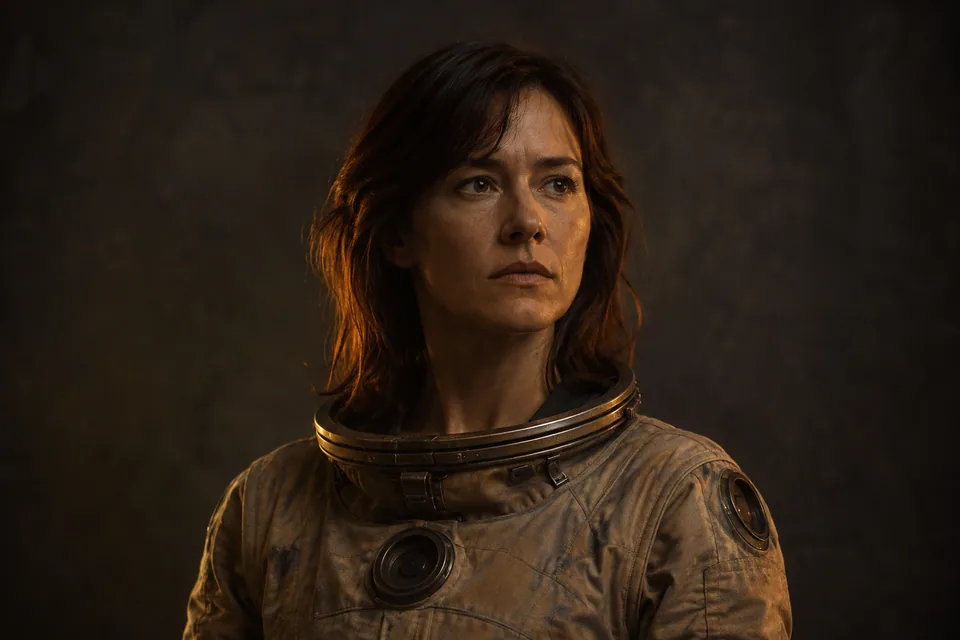
Review the characters from your script and refine their look. Generate reference images, try another take or upload your own. Choose the images that feel right and assign your cast to each shot.
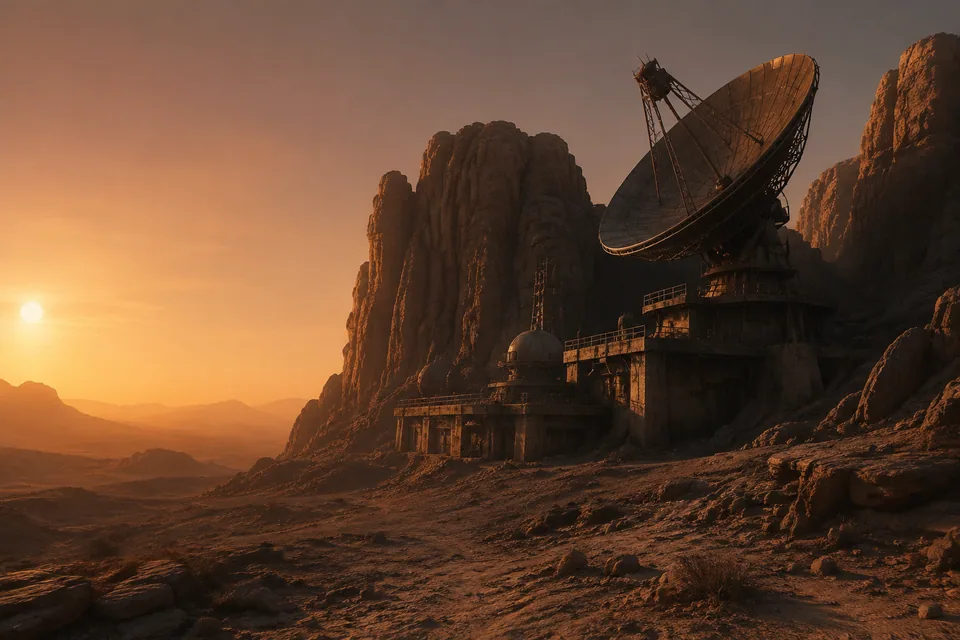
Create the locations, environments and props your story needs. Describe a room, a landscape or an imagined world, generate its visual references and use them wherever the story returns.
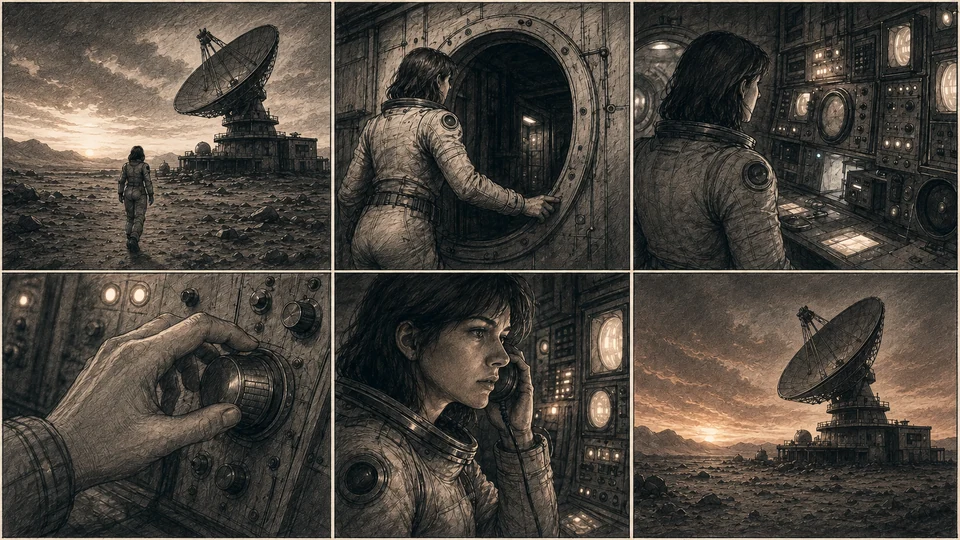
Bring your cast and locations into the shot plan. Prepare reference frames and choose the framing and movement. Go deeper with lenses, camera angles and visual styles when you want more control.
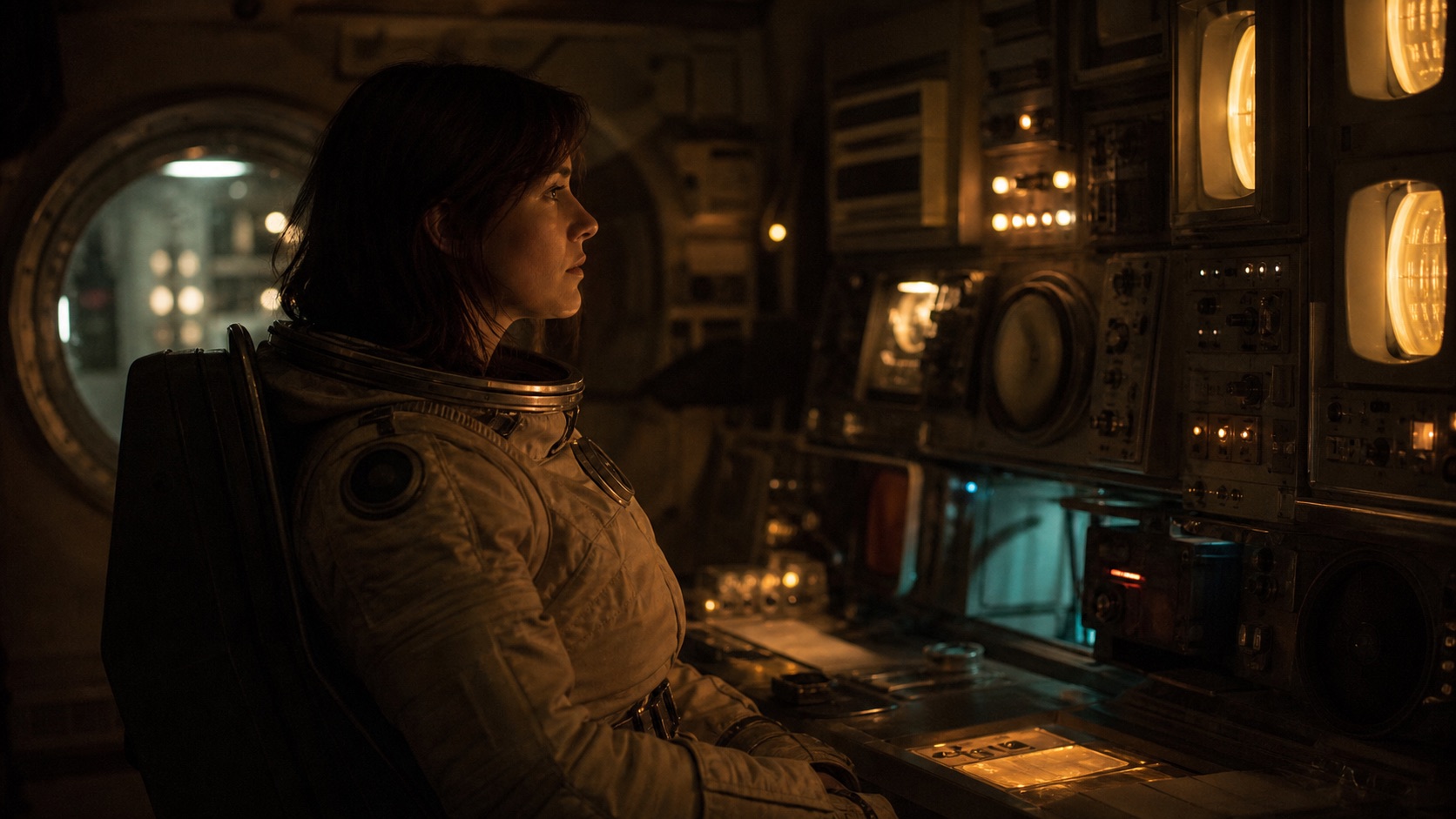
Choose a connected video model and generate a take from your shot direction. Compare versions, keep the one you love and create voice or sound to support the scene.
Arrange your clips and stills in the timeline, adjust the pace and add your soundtrack. Export a movie you can share and save a production backup to pick up where you left off.
Paste a script or import Fountain or plain text. Review the proposed cast, locations and shots before applying the breakdown.
Generate or upload character, location and environment references. Keep the versions you choose connected to your shots.
Set endpoints and direct each shot. Advanced mode adds lens type, focal length, shot size, camera angle, movement, focus and visual style to your frame and video prompts.
Compare saved generations and choose which version belongs in the edit.
Sequence clips and stills, adjust the pace and add a film-wide soundtrack.
Export your movie, download your screenplay and back up a portable production package.
MovieFactory.ai is a browser-based AI filmmaking workspace. Write a screenplay, plan your shots, connect your generation tools and assemble the edit in one project.
A story changes with the way you see it. Choose a look, then drag to see the difference.
Warm highlights. A little nostalgia. A world you can almost feel.
Interactive color study on concept artwork.ORIGINALGOLDEN HOURBuild a narrative scene by scene. Keep recurring characters, locations and shot direction together as you work toward a complete cut.
Test composition, shot order and pacing with still frames. Export an animatic before committing to video generation or a physical shoot.
Explore the mood of a bigger story. Combine a few directed shots with a soundtrack to show the world, tension and visual language.
Try another model, revise a camera move or compare alternate frames. Keep earlier takes available while you decide what works.
Projects and uploaded media stay in this browser. Export a production package to keep a backup or move your work.
Mix still frames and moving clips, choose your soundtrack and export your finished movie.
A little clarity before the opening scene.
Join the beta waitlistAdd your email to the early-access list on this page. We’ll use it to share news about MovieFactory.ai beta access. Signing up registers your interest; invitations will be shared separately.
moviefactory.ai is a browser-based AI filmmaking workspace in early access. It connects screenplay writing, storyboarding, cast and world references, shot direction, AI generation, sound and editing in one production project.
Build full films, cinematic scenes, storyboards, animatics, trailers and concept films. Start from a story or screenplay, or upload your own images, clips and sound to assemble an edit.
Yes. Paste your screenplay into the Script room or use Import script to upload a .fountain or .txt file up to 2 MB. Analyze the script to propose characters, locations, environments, props and shots, then review the breakdown before applying it. You can generate the character and world references when you apply the plan, or create them individually later.
Start with the references proposed from your script, or add your own. Refine a character’s appearance or describe a location, environment or prop, then generate an image. You can also upload PNG, JPEG or WebP references, generate missing images together and choose new takes. Assign your selected references to shots to guide the look of the film. Generation uses your connected provider account.
You can start with your script and follow the production steps: review the breakdown, create your cast and locations, prepare shots, generate takes and assemble the edit. Refine one scene at a time, with advanced camera, lens and style controls available when you want them.
Built-in connections include OpenAI for writing and GPT Image 2; Runway and Higgsfield for Veo 3.1 and Veo 3.1 Fast; ElevenLabs for speech and sound effects; and ComfyUI for custom generation. ComfyUI presets support MiniMax H3 turbo and LTX 2.5 distilled when their required models and nodes are installed. Other models such as FLUX, Qwen-Image and Wan need a compatible custom ComfyUI workflow.
No. Built-in connections need an eligible provider account and credentials. ComfyUI presets require the matching models and nodes on your server. Custom-workflow entries are examples of ComfyUI pipelines you can configure, not preinstalled or individually verified integrations. Model access, cost, hardware and workflow compatibility vary.
Generation uses the connected provider account and its credits, or your own ComfyUI hardware. Costs and available models depend on the provider and settings you choose. Provider API access and credits may be separate from consumer subscriptions.
Yes. Upload your own media, reuse images as shot endpoints, combine still frames with video clips, and select a soundtrack. You can build an animatic with stills before generating motion.
Create shared cast and world references, assign them to shots and reuse selected images when preparing new frames. You can also reuse a shot’s closing frame as the next opening frame. These controls guide continuity; the final results depend on the model and direction, so review your takes.
Projects and uploaded media are saved in this browser on this device. They are not automatically synced to the cloud. Export a production package to back up your editable project and local media, or to move it to another browser. Provider keys you enter are kept for the browser session and are excluded from project exports.
Yes. Assemble your clips, still frames and soundtrack, then export your finished movie. Export runs in your browser, so keep the tab active until it finishes. You can also download screenplays, an edit decision list and your editable production package.
Join the MovieFactory.ai beta waitlist. Leave your email to hear about early access and help shape what comes next.