Movie Brain
A story beat, an approved character reference, a location and a decision already made. Movie Brain brings the relevant film context together for each reviewed operation.
Explore Movie Brain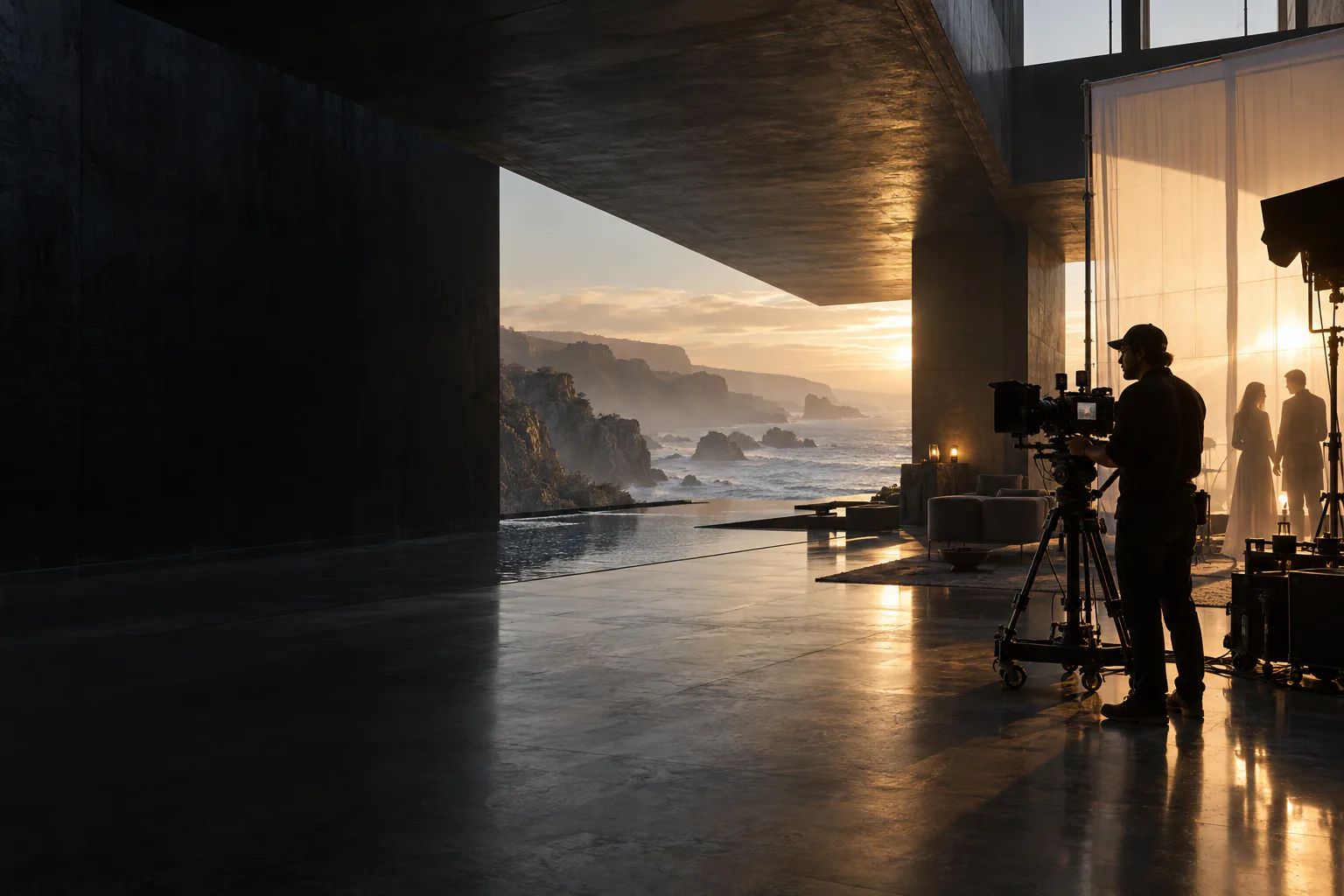
Movie Brain brings the story context. The production graph connects your references, shots and takes. Continuity helps you review what changed. Follow that connected workflow from Script → Cast → World → Direct → Motion → Edit, in the browser or dedicated native Mac app.
Movie Brain prepares the context. The production graph connects the versions. Continuity brings possible mismatches back to you.
A story beat, an approved character reference, a location and a decision already made. Movie Brain brings the relevant film context together for each reviewed operation.
Direct the next shot without rebuilding its context from scratch.Explore Movie Brain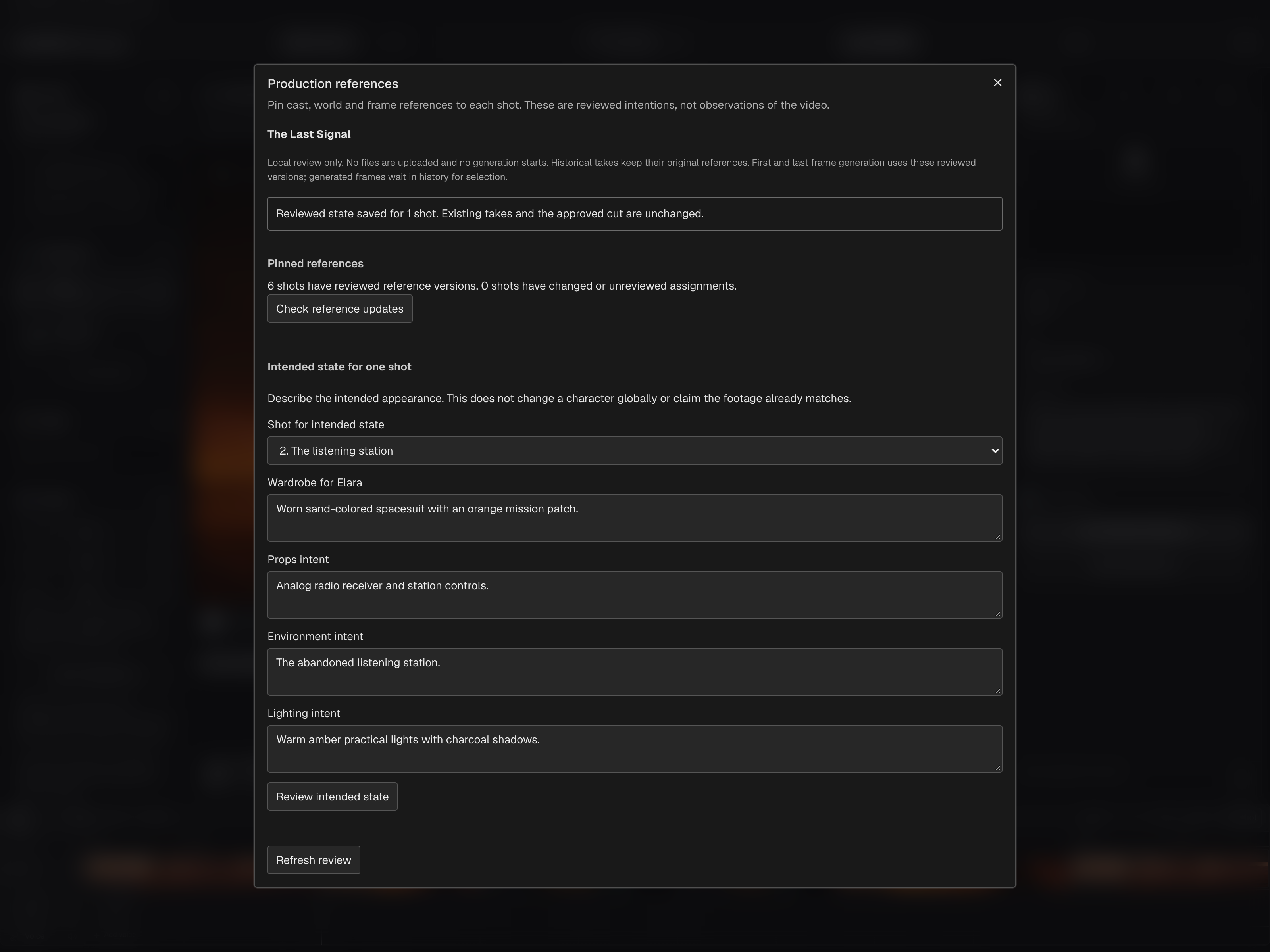
The production graph connects reference pins, shot specifications, takes and timeline versions. Reusable assets keep their own immutable versions and independent film copies. Choose what to update and preserve what was approved.
Move the production forward without rewriting its history.Explore Production graph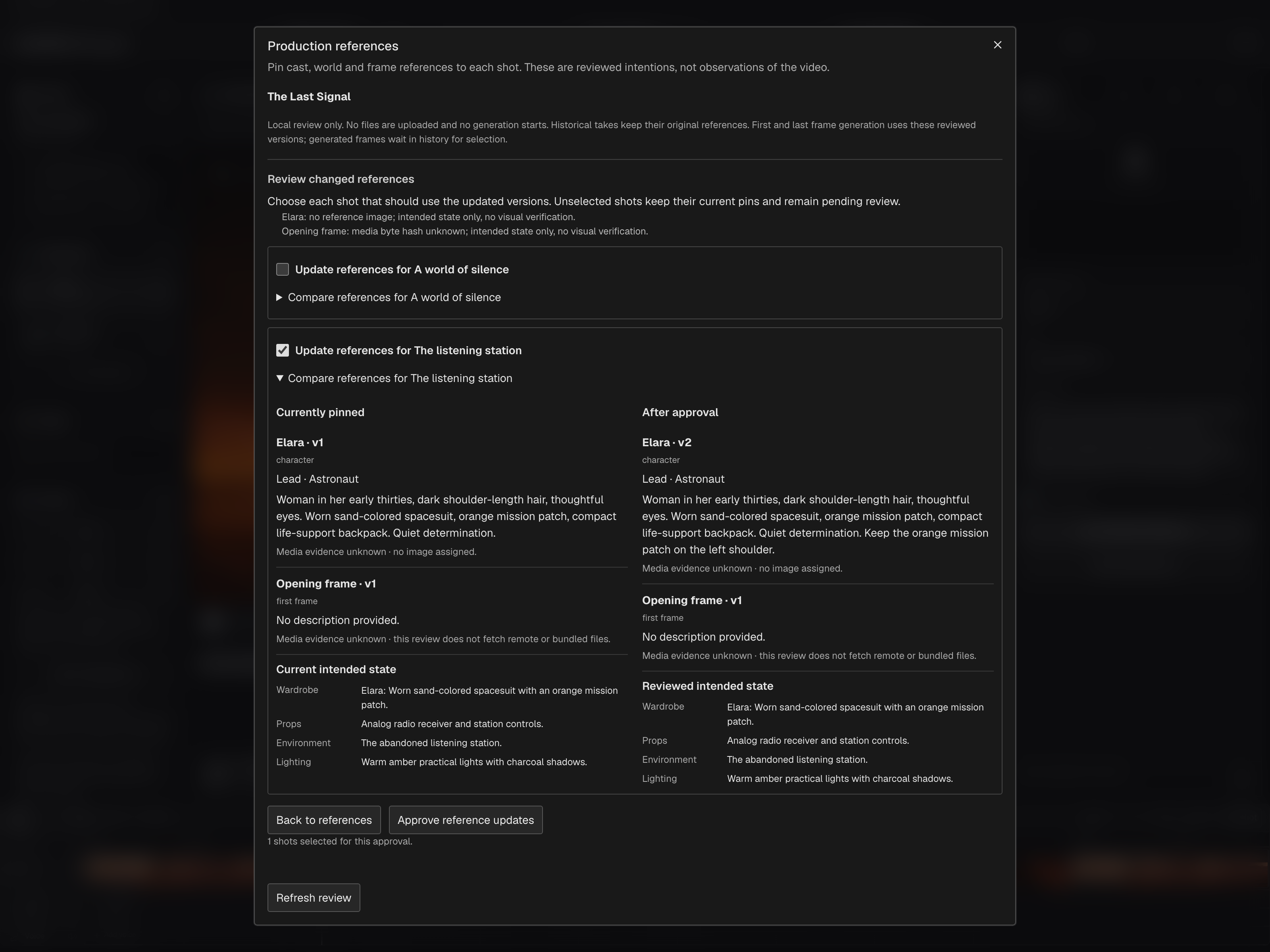
A reference tells you what was intended. The footage shows what was made. Production checks and evidence-based review bring possible discrepancies to the filmmaker with context.
Make inconsistencies visible. Keep the final judgment yours.Explore Continuity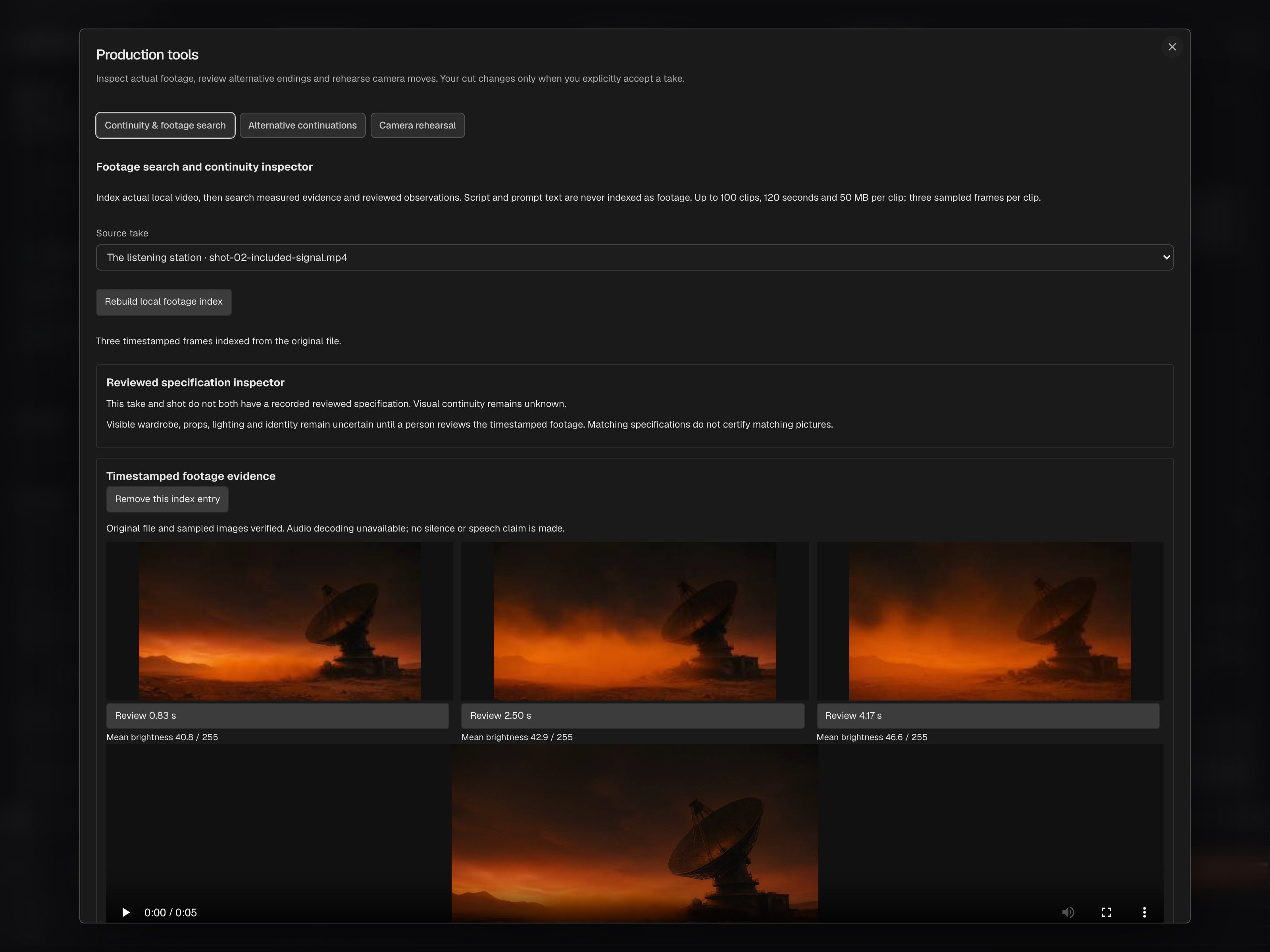
A story beat, an approved character reference, a location and a decision already made. Movie Brain brings the relevant film context together for each reviewed operation.
Explore Movie BrainThe production graph connects reference pins, shot specifications, takes and timeline versions. Reusable assets keep their own immutable versions and independent film copies. Choose what to update and preserve what was approved.
Explore Production graphA reference tells you what was intended. The footage shows what was made. Production checks and evidence-based review bring possible discrepancies to the filmmaker with context.
Explore ContinuityActual browser studio screenshots with example media. Browser and Mac both support reviewed references and tracked frame candidates; their production controls differ. Projects transfer explicitly and do not automatically synchronize.
Paste a screenplay or import Fountain or plain text. Review proposed scenes, characters, locations and shots before applying the breakdown. Movie Brain connects the story to each shot’s intent, references and neighboring action, while revision-aware planning shows what a change affects.
Build a reusable character library with reference views, costume variants and approved versions. Capture references from a film or add your own, then assign an exact version to selected shots. Each film keeps its own copy. In the browser, review which shots adopt later reference changes while earlier takes retain their history.
Keep locations, props, vehicles and complete sets in your library. Import textured and rigged GLB models, compose a set from approved assets, adjust materials and lighting, and preview animation. Rehearse camera movement with stand-ins, export a storyboard or GLB scene, and carry reusable worlds between browser and Mac in an asset pack.
Turn supported instructions into a visible AI Director plan. Adjust exposure, contrast, warmth, framing, trim or clip audio locally, or paint a fixed region for grading. Review operations across selected shots, compare every candidate and explicitly accept changes into the cut. Ambiguous or unsupported instructions need revision before processing.
Generate frames and video from reviewed shot context using a compatible configured provider. Pinned references, prepared inputs and output history stay attached to the result. Keep an opening interval and explore two alternative endings, review the transition and choose which candidate belongs in the film.
Compare take change reports, inspect sampled footage and search timecoded observations before choosing the cut. Arrange picture and sound, preview screenplay dialogue as subtitles and export the approved timeline with separate subtitle files when needed. Production packages carry editable work, source media and supported history between devices.
Follow a film through six connected stages in the dedicated native Mac app. Develop the story, review the possibilities and finish the cut while keeping your originals and creative decisions close.
Explore the Mac app macOS 26 or later · Local film documentsActual native app screenshots · 30 October 2026 · Sample film, rendered clips and local demonstration audio.
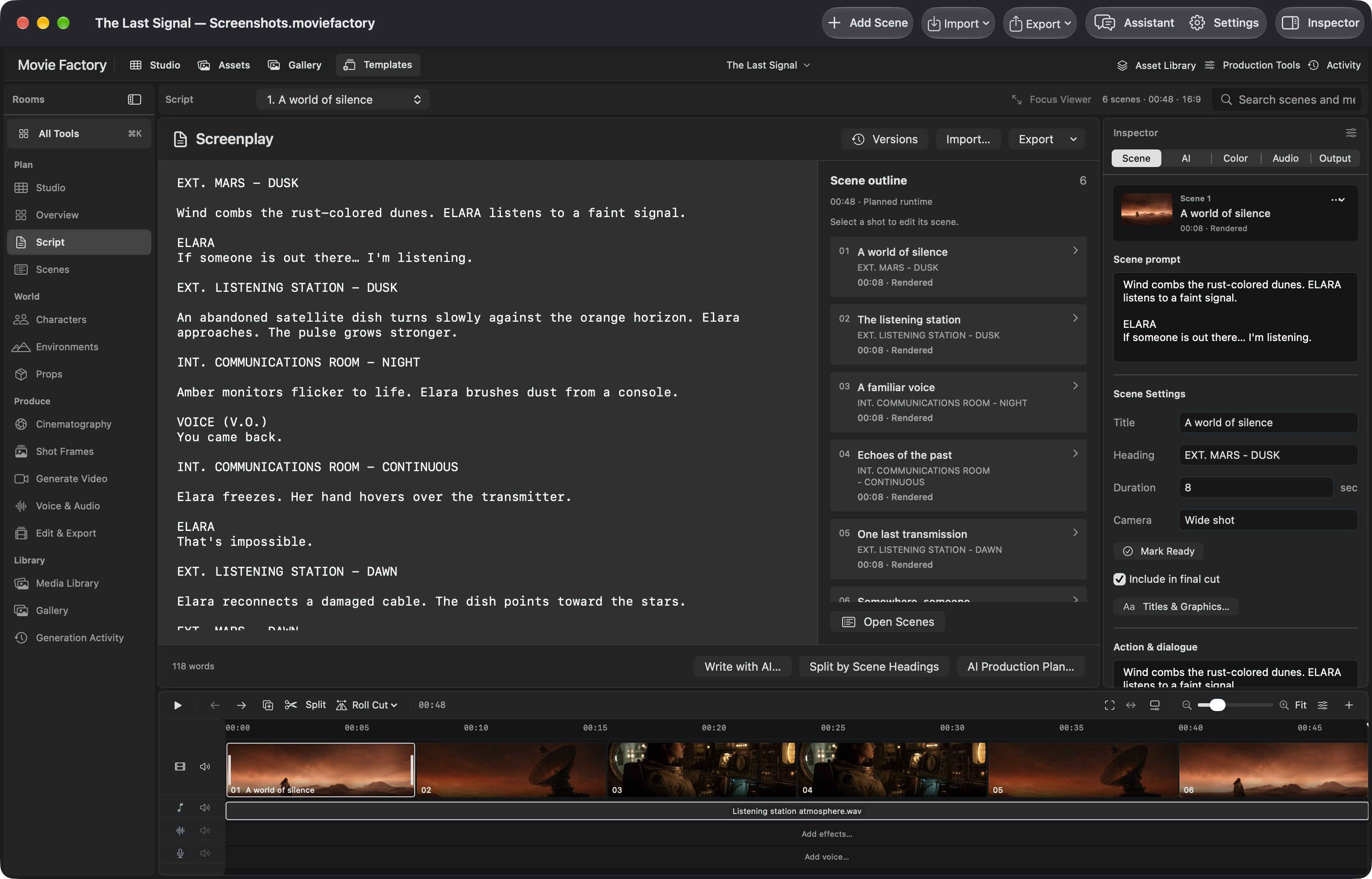
Write or import a screenplay, shape its scenes and build the cast, environments and props around them. Reusable assets keep approved versions available as the production develops.
IN THE APPScript · Header → Asset Library
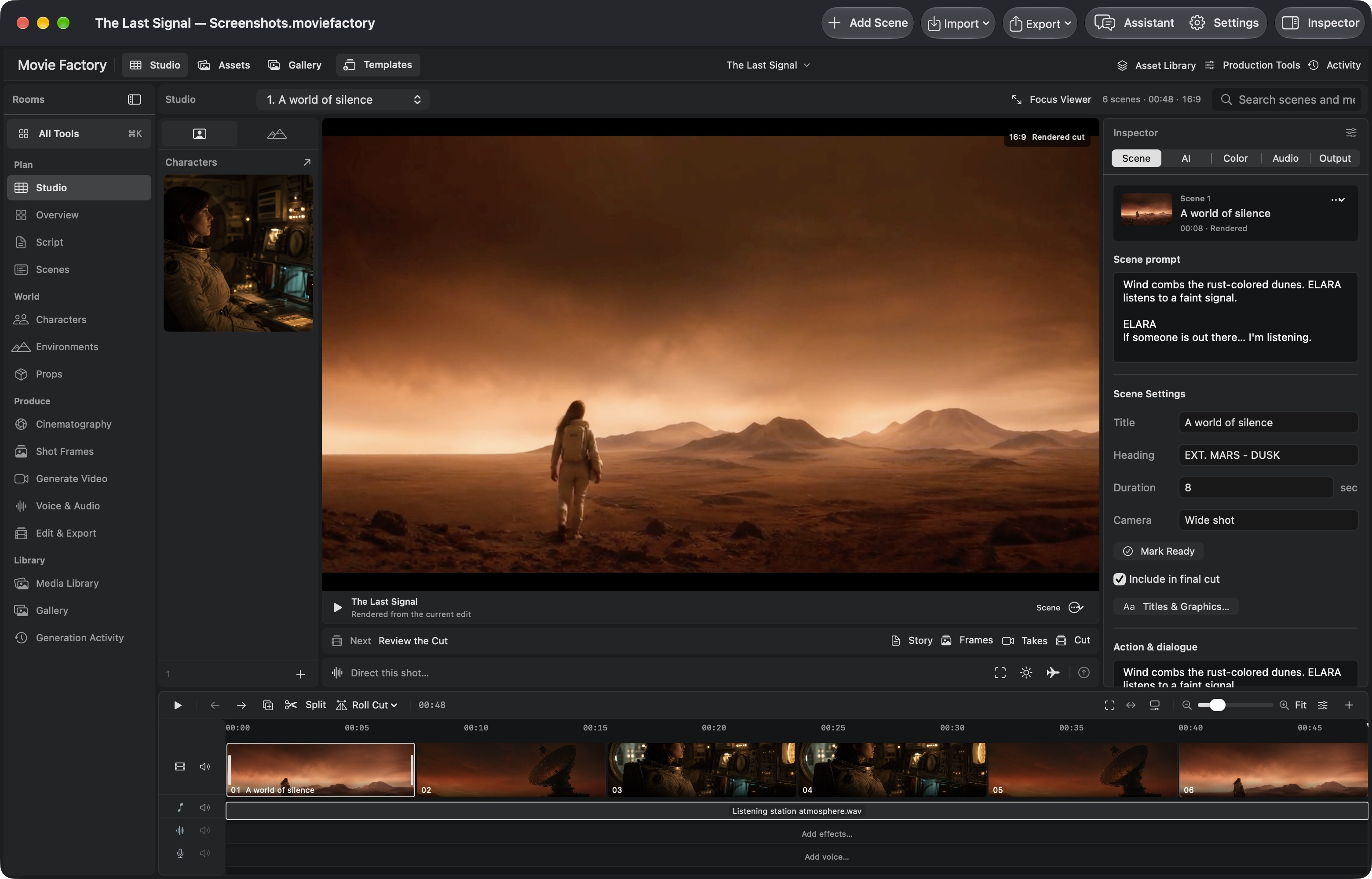
Approve pinned references and shot intent before generating tracked frames. Rehearse camera moves, inspect footage and continuity, or prepare Local Director edits and alternative continuations.
IN THE APPShot Frames → Review References… · Production Tools
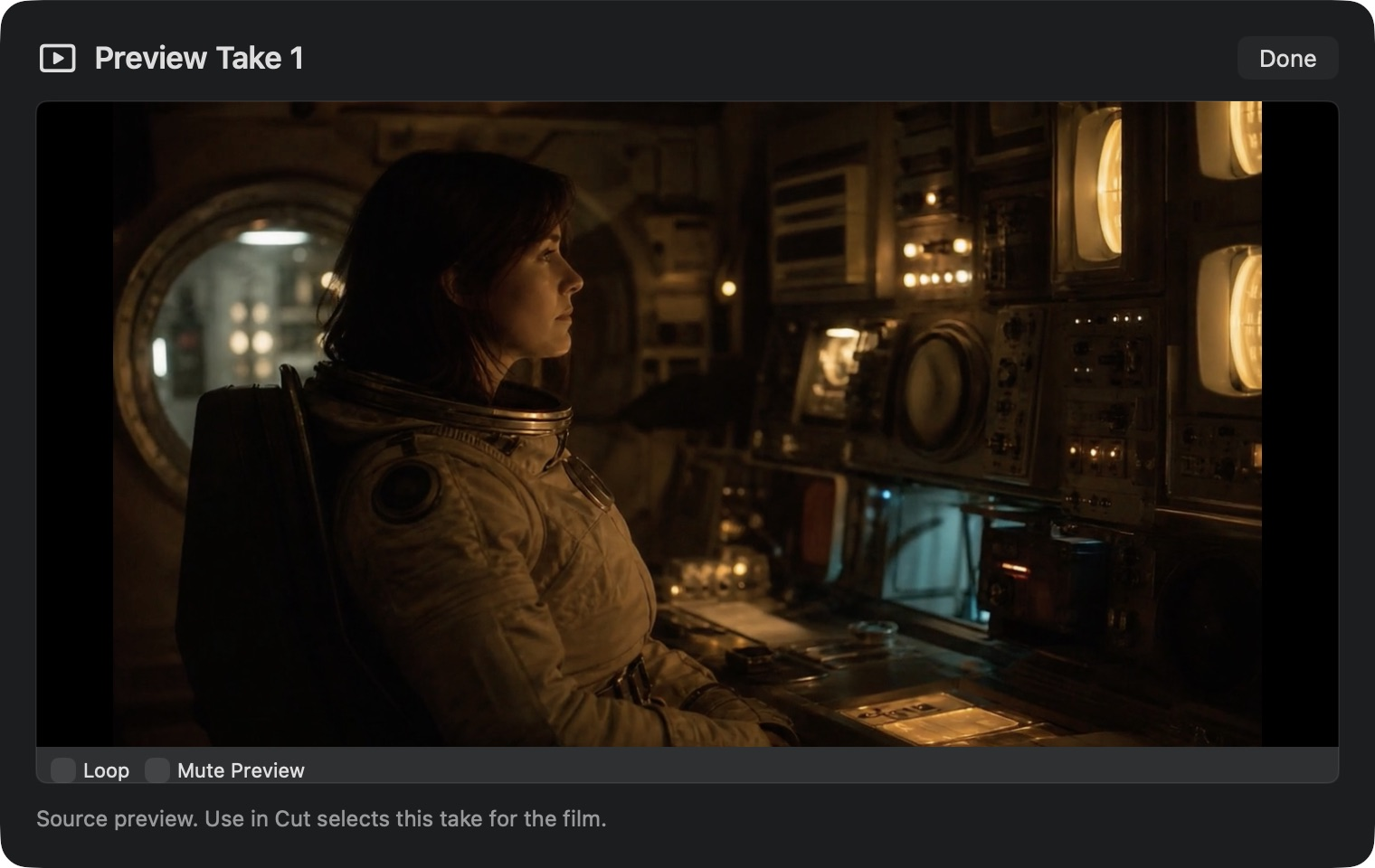
Bring candidates into a numbered review queue, keep alternatives and save your notes. Compare synchronized players with remembered source starts and speeds, with one side audible at a time.
IN THE APPGenerate Video → Take Review
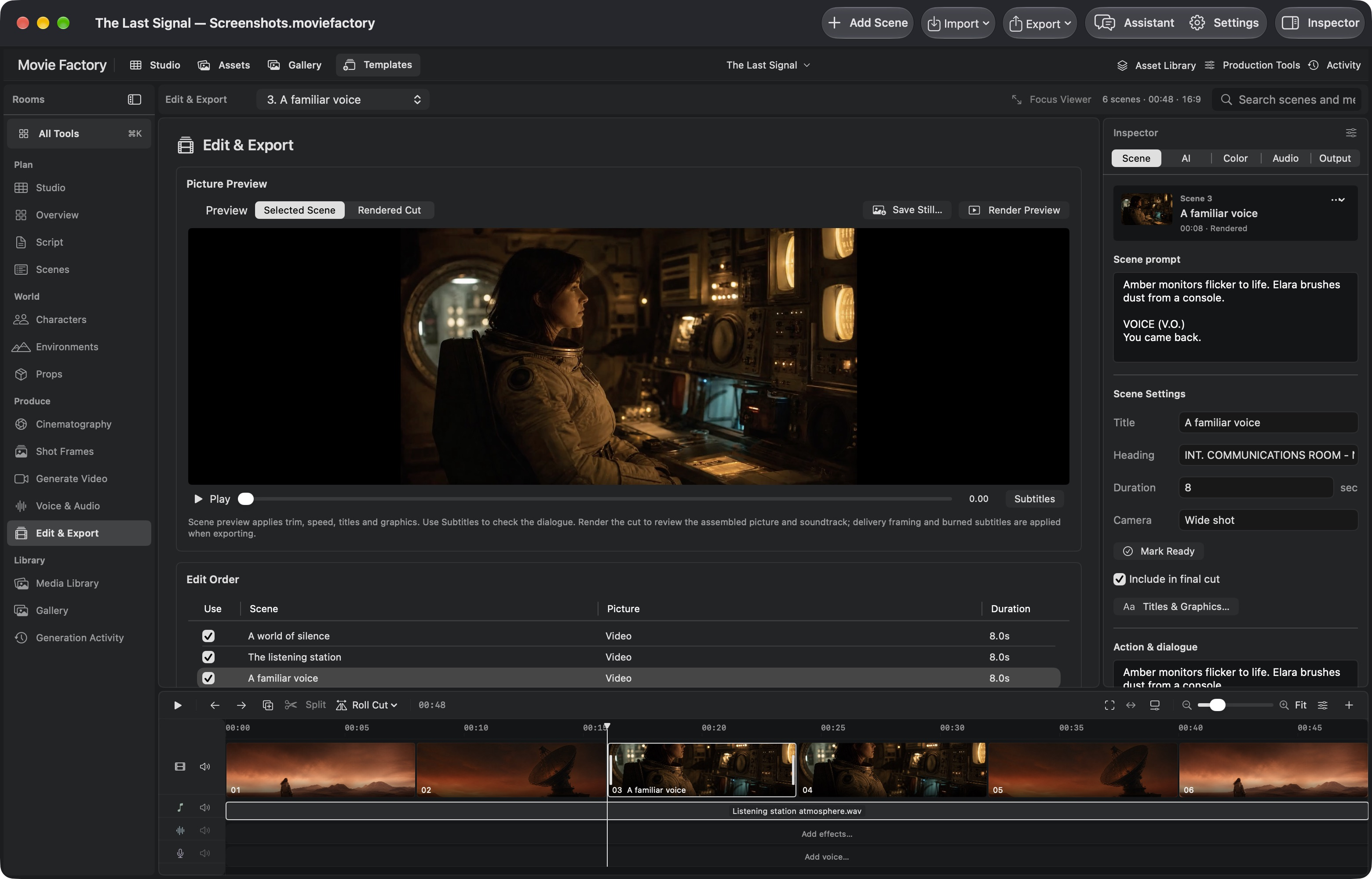
Trim on the 24 fps editing grid, snap to cuts and optionally ripple downstream audio. Add motion, fades and picture transitions, then bring timed titles and graphics into the film.
IN THE APPTimeline → Motion · Edit → Titles & Graphics…
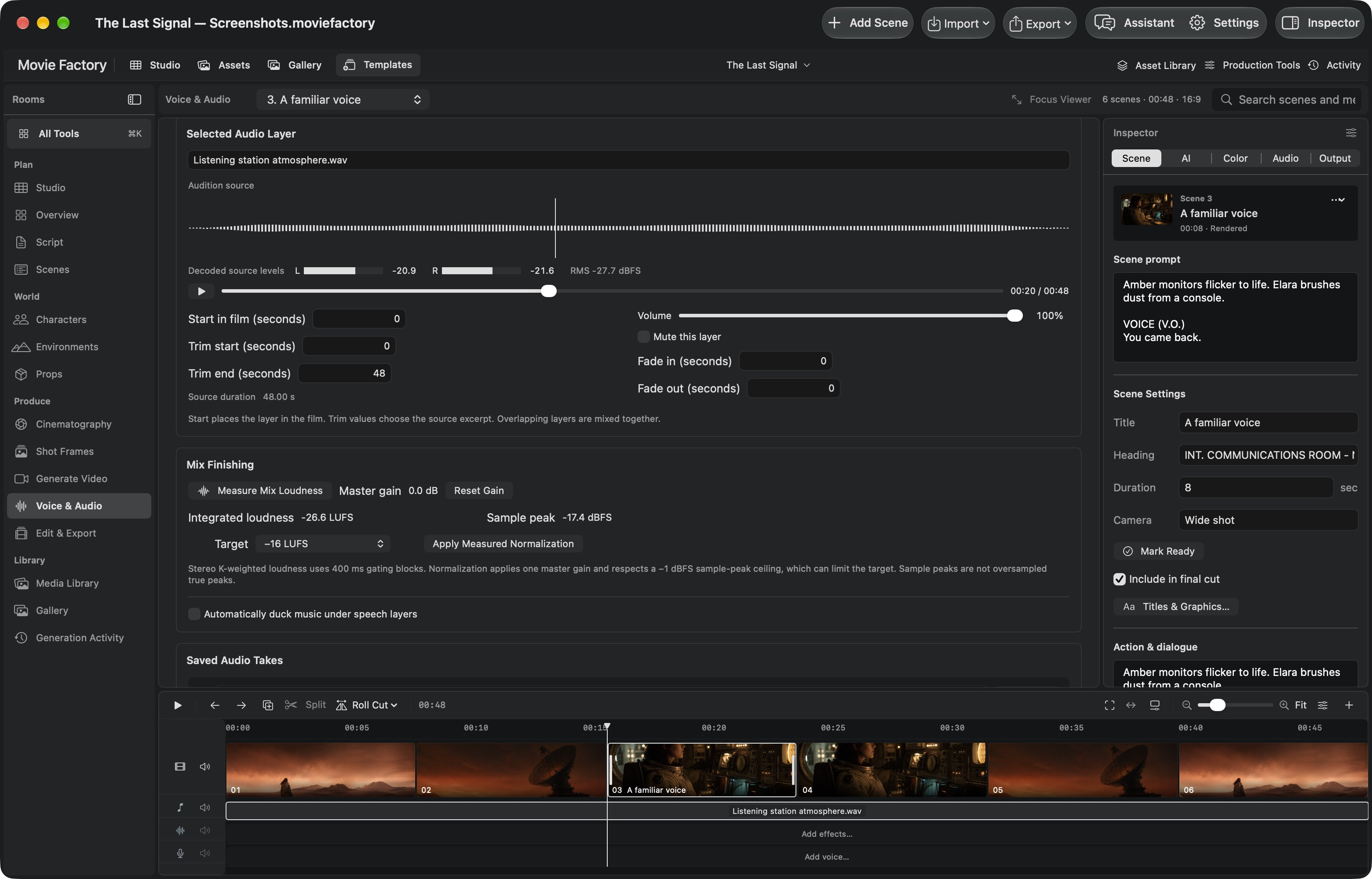
Import or generate speech, music and effects, then trim layers and balance their volume and fades. Inspect waveforms and measure the mix before carrying its finished sound into delivery.
IN THE APPAudio → Mix Finishing
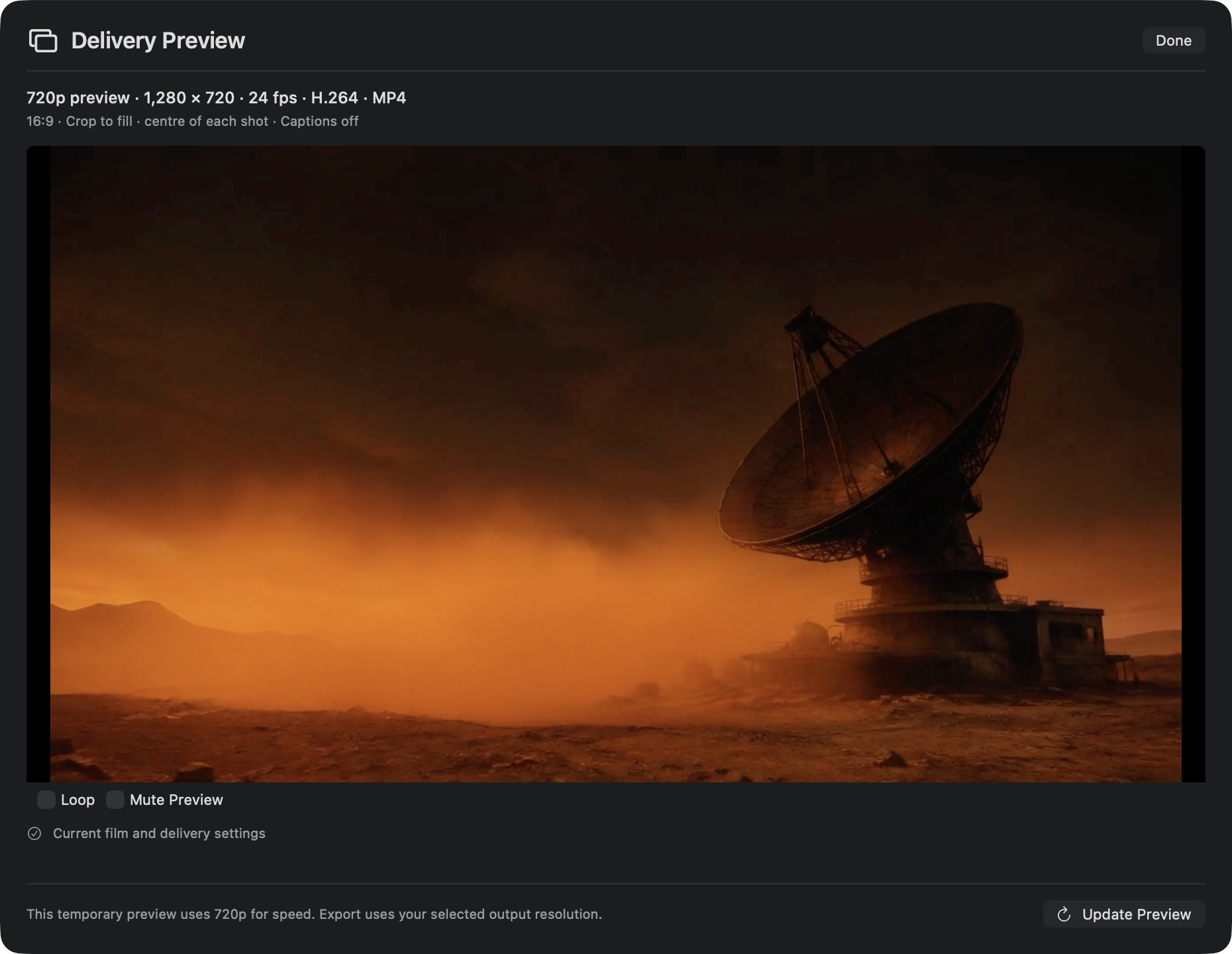
Render up to two hours at 720p, 1080p or 2160p in H.264, HEVC or ProRes 422. Choose landscape, portrait or square delivery, with eight frame rates from 23.976 to 60 fps.
IN THE APPEdit → Export Movie · Final Cut Delivery…
Link source files, relink verified originals and create 540p playback proxies. Delivery reads the originals; a native .mfarchive collects media and production history for a verified restore.
Originals, proxies and archivesConnect OpenAI, Runway, Higgsfield, ElevenLabs or ComfyUI with credentials in macOS Keychain and sharing enabled per provider. Core editing, saving and local rendering work without provider keys; generation depends on your account or installed workflow.
Providers and local workflowsRequires macOS 26 or later. Transfer supported work explicitly with a production package; there is no automatic device synchronization. Native motion, transitions, normalization and ducking travel as saved data, but the browser does not render those effects. Export a movie to carry the finished picture and sound.
Understand project transfersRelevant story and shot context connects pinned reference versions, prepared generation inputs, immutable takes and approved timeline history.
Keep characters, sets, locations, props and vehicles in a reusable library. Approve versions, choose variants, assign independent copies to films and transfer complete asset packs.
Compose textured and rigged GLB assets, adjust materials and lighting, and preview animations. Rehearse camera paths with stand-ins and export PNG storyboards or GLB scenes.
Paint a fixed image region for exposure, contrast or warmth changes over a chosen interval. Review the mask and candidate alongside the preserved original.
Generate frames and video with pinned context, or preserve an opening and compare alternative endings. Review inputs, destination and each candidate before acceptance.
Adjust exposure, contrast, warmth, crop, trim and clip audio. Review plans across selected shots, compare immutable candidates and approve the complete batch.
Search actual sampled footage and timecoded observations. Take change reports separate recorded decisions from measured differences, with human review at every step.
Edit picture and sound, preview screenplay subtitles and export the approved cut, SRT or WebVTT. Move supported media and history through local production packages.
YOUR PRODUCTION LIBRARY
A character is more than a prompt. A set is more than a backdrop. Give the people, places and objects in your films a home of their own.
One world, ready for its next story.
Select an asset to explore its details.
A cinematic environment shaped by architecture, atmosphere and light.
Collect reference views, costume or material variants, and approved versions. Characters, sets, locations, props and vehicles each have a place in your library.
Import textured GLB models with rigs and animation. Arrange models, tune materials and lights, frame the camera, and preview animation. Export PNG storyboards or a composed GLB.
Reuse an approved version across films. Exchange .movieassets packs between browser and Mac. Each film keeps its own copy, independent of later library edits.
Your library. Stored locally.Made for the Standard workspace and the Pro Media library.
Join early access3D MOVIE RENDERING
With Immersive Converter
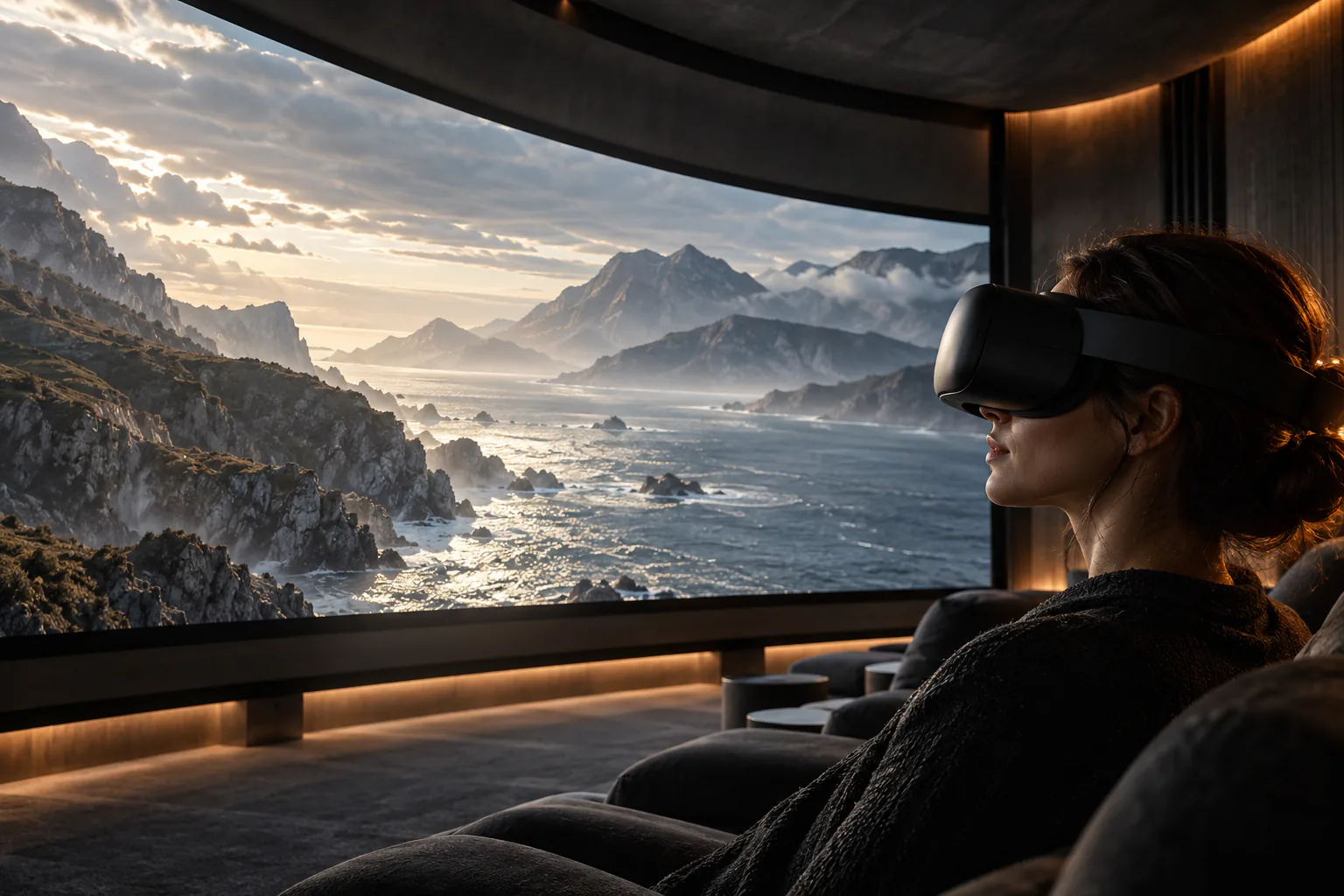
Finish your film in moviefactory.ai, export a movie file, then import it into Immersive Converter, a separate Mac app, to create a stereoscopic 3D version for VR or spatial viewing.
Watch your movie in VR.Give your audience a 3D screening in a headset, with depth inside the movie frame and the composition you directed.
Create, edit and export your movie in moviefactory.ai.
Import the exported movie into Immersive Converter on your Mac. Preview and adjust the 3D effect.
Choose spatial video for Apple Vision Pro on a compatible Mac, or side-by-side or top-bottom stereo for compatible VR players.
This creates a framed stereoscopic movie, not automatic 180°/360° video or a scene you can walk around. Match the export to your headset and player.
Turn a creative instruction into a plan you can review. See the selected shot, preservation limits, processing destination and estimated cost when known, before execution. Apply precise local edits to a take or review a batch across selected shots. Exposure, contrast, warmth, crop, timing and sound stay explicit in the plan.
“Make shot two darker.
Keep the cut and sound.”
Three versioned shots share cast and location references. This example illustrates the reviewed production workflow.
Select a take, choose the interval and paint a region when needed. The plan shows what will change. Every retake becomes a candidate for your review, with the original preserved.
Paint a fixed region for exposure, contrast or warmth. Add feathering and choose when the adjustment applies. Preview the mask across the shot before rendering a separate candidate.
The mask stays fixed as subjects move. MP4 export re-encodes the picture, including areas outside the mask.Compare source and candidate at matching moments. Read the saved operation alongside timestamped frame samples and measured differences, then accept the result or keep the original.
Source takes and earlier decisions remain available. A batch changes the cut only after explicit acceptance.Plan with memory. Direct with boundaries. Review with evidence. Finish with the production intact.
Develop the story, build reusable assets and choose the exact references each shot should use.
Work from the connected Standard desk or switch to dedicated Pro rooms for writing, references, shot planning, generation, sound and editing. Both views work on the same film.
Draft and revise screenplays, retain versions and turn approved material into a shot plan.
Build a timed production from a format, genre, visual style and delivery plan.
Organize characters, complete sets, locations, props and vehicles with reference views, appearance details and production notes.
Save immutable draft or approved versions, choose named costume or reference variants, and find assets by collection, tags, search or favorites.
Use an approved asset in selected shots. Each film keeps its own original files and set members, even when the catalog changes or an asset is removed.
Review and approve shot references in the browser or Mac app. In the browser, inspect affected shots and choose which adopt a changed version. On Mac, prepare a reference review for the selected scene or all scenes. Earlier versions and footage stay intact.
Bring the relevant story beat, approved references, neighboring shots and camera intent into the next reviewed operation.
Open footage review, continuation branches and camera rehearsal in the context of the current project and shot.
Rehearse a scene, review a generation plan or make a precise change to an existing take.
In the browser or Mac app, create tracked opening and closing frame candidates from reviewed shot context. Inspect the inputs and choose the result to use. Review a new opening’s references before generating the closing frame on Mac.
Create reference art and shot frames with GPT Image 2 or GPT Image 2.5. Choose size, quality and JPEG or lossless PNG. Mac supports up to 16 reference images and prepares upload copies while retaining originals.
Carry approved context and frame references into compatible video workflows. Keep the recipe and source evidence with each candidate.
Turn supported instructions into a visible plan for trim, crop, exposure, contrast, warmth and clip-audio levels. Render a separate take after review.
Select up to eight shots and combine up to six different operations per shot. Ambiguous or unsupported instructions stop the plan; review and accept the complete batch explicitly.
Paint a fixed region for exposure, contrast or warmth, with optional feathering and a time interval. Check the region as objects move; masks do not track or replace objects.
Import self-contained GLB models with textures, materials, rigs and animation. Arrange pinned asset versions, adjust materials and lighting, play clips and export a composed GLB or storyboard PNG.
Arrange actor and prop stand-ins, block a scene, set camera keys and field of view, then play the move. Export storyboard PNGs and a GLB scene.
Keep a chosen opening and explore two endings with imported clips or supported generation. Review each composed candidate before accepting it; seamless motion and sound are not guaranteed.
Use writing, image, video and audio tools through your configured provider accounts or compatible ComfyUI workflows.
Inspect the production record alongside observations from the footage itself.
Search timestamped observations from three captured samples of an actual clip. Open matching moments in the source; an action between samples may be missed.
Add visual or audio notes locally. With explicit frame-sharing consent, request optional captions and visible-text observations. Audio measurements are not speech transcripts.
Compare recorded shot specifications with reviewed reference versions. Keep production mismatches distinct from possible visual discrepancies.
Separate exact recorded edit changes from sampled visual evidence. Compare aligned frames, measured brightness and color differences, timing and audio measurements.
Bring alternative video takes into the browser, confirm their shot assignments and review them together with generated candidates. Add notes, mark a take Keep or Reject, and explicitly choose the version for the cut.
Compare synchronized A/B views, inspect filmstrips, swap alternatives and step through frames or a selected interval before deciding.
Accept a selected take or a reviewed batch into the timeline. Preserve source media, earlier decisions and the history needed to undo.
Bring the edit, sound, titles and portable production together around the approved cut.
Assemble selected takes, split at the playhead, roll a cut, adjust clip start and speed, and undo an edit. Fit or zoom the timeline; the playhead stays in view while you navigate the sequence.
Arrange dialogue, music and effects on audio layers. Trim sources, place cues, set fades, mute layers and balance levels. Use your recordings, generate speech and effects through ElevenLabs, or connect a compatible music workflow.
Add timed titles, lower thirds and end cards in the browser or Mac app. Set typography, colors, placement and a logo, preview the result, then render the text into your movie. The browser also offers a clean export without on-screen text. Mac uses imported local logos and saved text translations.
In the browser, export 720p or 1080p MP4 in landscape, portrait or square, using crop-to-fill or fit-with-bars for another format. Browser films can run up to ten minutes. Download an edit decision list and screenplay alongside the finished movie.
Finish your film in moviefactory.ai, export a movie file, then import it into Immersive Converter, a separate Mac app, to create a stereoscopic 3D version for VR or spatial viewing.
Preview screenplay dialogue with CC in the browser’s Standard and Pro Edit monitors. Timing is estimated: review it against final audio, then export SRT, WebVTT or a transcript, or choose subtitle burn-in separately.
Translate screenplay subtitles through your OpenAI connection and review names, meaning and timing. The browser also translates on-screen text. Export a scene-based chapter list for suitable cuts alongside SRT, WebVTT or a transcript.
Export a stereo WAV mix or save a full-resolution PNG still for a poster or thumbnail. Browser WAV exports contain audio layers; Mac WAV exports also include enabled source-clip sound.
A dedicated native macOS app with a first-of-its-kind connected filmmaking workflow. Approve references, generate tracked frames and compare numbered takes. Finish titles, timeline motion and measured audio, link originals with playback proxies, and deliver up to 4K in H.264, HEVC or ProRes. Save a native archive or exchange supported work through production packages.
Transfer an asset or an entire set with its dependent assets and original files between browsers and Mac. Restore reusable catalog assets from a film’s independent copies.
Record against a shooting plan in the companion app and hand footage into the studio with its production context.
Save full or compact production backups with original takes, pinned references and supported history. Browser storage controls show usage and backup status. On Mac, returned images that exceed a film’s media budget remain accessible in Generation Activity → Recovered Files.
Keep projects on your device, choose processing destinations and inspect generation status. Provider access and costs stay under your control.
Generation uses configured providers and supported inputs. Imported 3D models and camera rehearsal do not automatically condition generation. Footage observations need review. Mac preserves on-screen text but does not render it; screenplay subtitles have separate delivery controls. Asset packs and production packages transfer work explicitly between devices. Catalogs and films do not automatically synchronize.
Director, World and Edit: three connected modes built around a large central viewer, contextual controls and the timeline. One production system connects creative intent, compatible tools and filmmaker review.
Build an editable 3D blockout with actors, props and walls. Set camera position, target, field of view and motion keys; play the move and export storyboard PNGs or a GLB scene. Use the PNGs as visual references for planning. Rehearsal geometry is not submitted to generation.
A common execution layer connects independently licensed local and hosted workflows. Each integration declares its supported inputs, limits, availability and test status, so a shot can use tools suited to its requirements.
Keep projects and uploaded media on your device. Portable production packages carry media and known production history between supported browser and native Mac workflows, with iPhone and iPad capture through the companion app. Choose when material goes to an external provider.
Our execution controls bring together job status, recovery, attempt limits, concurrency and approved spending boundaries. Show estimates when known; an unknown cost is never zero. Measure accepted shots and approved sequences, not just generated seconds.
Export the approved movie, preserve the screenplay and save a portable production package. Continue the story with the decisions and media that made it.
Join the moviefactory.ai early-access community. Bring your ideas, your perspective and your ambition. Help shape a filmmaking studio built for independent voices everywhere.